While there are no shortcuts to success, there are shortcuts to a more efficient workflow. We may not think about them much, but these keyboard shortcuts have helped millions of people make their daily—even hourly—workflows faster and more efficient.
Some of our favorite shortcuts at WordPress.com help us bypass menus, create post drafts with a single click, quickly access bulk management options, and effortlessly find useful blocks in the editor. Let's take a look and see how you can use these same shortcuts right now.
1. Command Palette with ctrl+K (or cmd+K)
First up is the Command Palette—think of it like a Swiss Army knife for your site.
What It Does: Instead of clicking around menus and hunting for the right setting or page, you can press ctrl+K on Windows or cmd+K on Mac to instantly open a WordPress-specific search bar. From there, you can access pages, posts, settings, and even plugins. It's your shortcut to just about anything you need in WordPress. The Command Palette is accessible when you are logged into your site and have a Block theme activated.
How to Use It: Press ctrl+K on Windows or cmd+K on Mac to open the command palette. Start typing what you're looking for, like "new post" or "theme settings," and hit enter when the option pops up. Voilà! You're instantly taken where you need to go.
Productivity Boost: This shortcut is a lifesaver when you're deep in your workflow and don't want to break your concentration by clicking through menus. It's especially useful for developers or site owners juggling multiple tasks.
2. Quick Post Drafts from the Toolbar
If you've ever been struck by a brilliant idea while browsing your site, you know the frustration of having to navigate to the dashboard to jot it down. Enter the Quick Post Draft shortcut! This lets you start a new post directly from the admin toolbar without breaking your flow.
What It Does: Start drafting a post from anywhere on your WordPress site (while logged in) by clicking the "+ New" icon in the admin toolbar and selecting "New Post." No more navigating to the dashboard, and no more interruptions.
How to Use It: While logged in, click the "+" icon in the toolbar, select "New Post," and start typing. That's it! You're already in draft mode, ready to get your thoughts down. Simply save the post as a draft for later, or let those creative juices fly right then and there.
Productivity Boost: This is perfect for those moments when inspiration strikes, whether you're looking at your homepage or checking your latest blog post. Instead of wasting time going to the dashboard and clicking through menus, you're writing instantly.
3. Bulk Edit posts, pages, or products
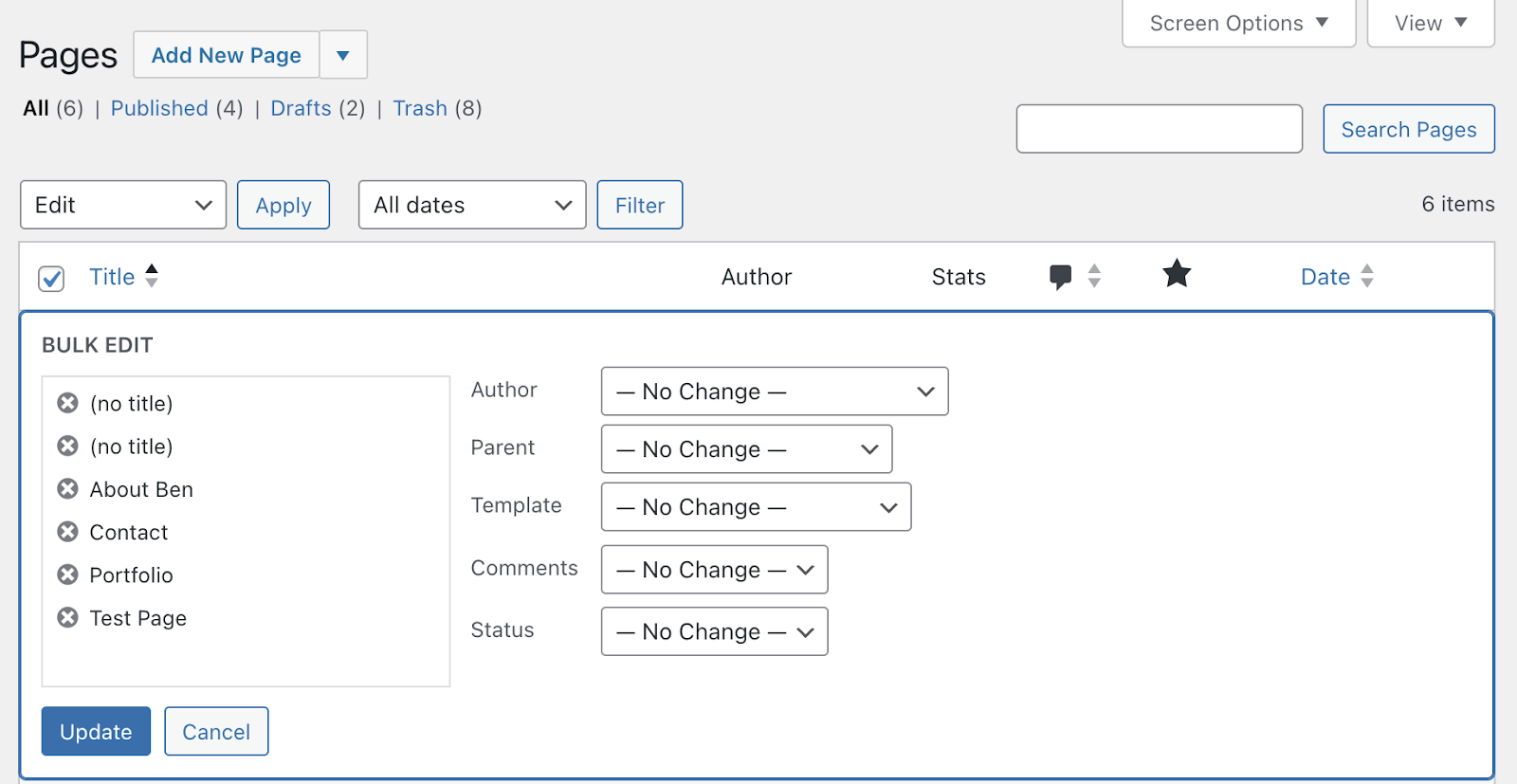
If you're managing a large WordPress site with a lot of content, you're probably familiar with the hassle of updating multiple posts or products, one by one. The Bulk Edit feature can save you loads of time by letting you edit several posts, pages, or WooCommerce products all at once.
Note: In order to use the Bulk Edit feature for Posts, ensure you're using the Classic view. Follow this support guide for more details.
What It Does: You can modify categories, tags, status, author, and more across multiple items in just a few clicks. Whether you're managing a blog, an eCommerce store, or a portfolio, bulk editing makes site management much faster.
How to Use It: Go to the Posts, Pages, or Products section of your WordPress dashboard.
Select the items you want to update using the checkboxes on the left-hand side, choose "Bulk actions," then select "Edit." Clickk Apply.
From there, you can change multiple settings at once, including categories, tags, and visibility.
Productivity Boost: This shortcut is a game-changer for anyone managing content-heavy or product-rich sites. You can handle mass updates without touching each individual post or product, making it a must-have for developers, content managers, and site owners.
4. Use / to Search for Blocks in Gutenberg
If you're using the Gutenberg block editor, you might have found yourself scrolling endlessly through the block library to find the exact block you need. Well, guess what? You don't have to! The slash-command (/) lets you search for any block instantly, speeding up your workflow.
What It Does: Typing / followed by the block name (like /image or /heading) pulls up the block you need instantly and without endless scrolling.
How to Use It: While in the Gutenberg editor, type / followed by the name of the block you want to add (e.g., /image or /quote). Select the block from the dropdown, and boom, you're good to go!
Productivity Boost: This shortcut is a massive time-saver for anyone working in the block editor. Whether you're building complex layouts or writing a blog post, it eliminates the need to manually search for blocks.
Ready to save time with keyboard shortcuts?
There you have it—four simple yet powerful shortcuts that can dramatically improve your WordPress experience. Whether you're looking to speed up content creation, navigate more efficiently, or manage large batches of posts, these tips will help you work smarter, not harder.
And remember, WordPress is packed with these kinds of hidden gems, so don't hesitate to explore and find even more ways to streamline your workflow.
Time is precious—let WordPress help you make the most of it. Looking for a powerful managed WordPress host? Check out WordPress.com's plans that offer unmatched speed, unstoppable security, and unlimited site visitors.




0 Response to "Top 4 WordPress Shortcuts to Save You Time and Boost Productivity"